Shadowrocket Quick Start
Import a Subscription and Connect for the First Time
Add your existing details in Home, choose Global Routing, then connect and verify. Follow the steps in order; if something fails, return to the first step that did not pass.
Screenshots are official App Store assets, provided to help identify screens and fields. The layout may change; follow the labels in your current version of the app.
Add Server / Subscribe: Add Your Existing Details
Choose either a subscription link or individual server details. There's no need to import the same information twice.
After opening Shadowrocket, stay on Home and leave the connection switch off for now. Check what kind of details you have: use Subscribe for a link that updates your server list; enter the details manually if you have a server address, port, protocol type, and authentication information. These steps add your details—they don't establish a connection or confirm that the service is working.
Add a Server Manually
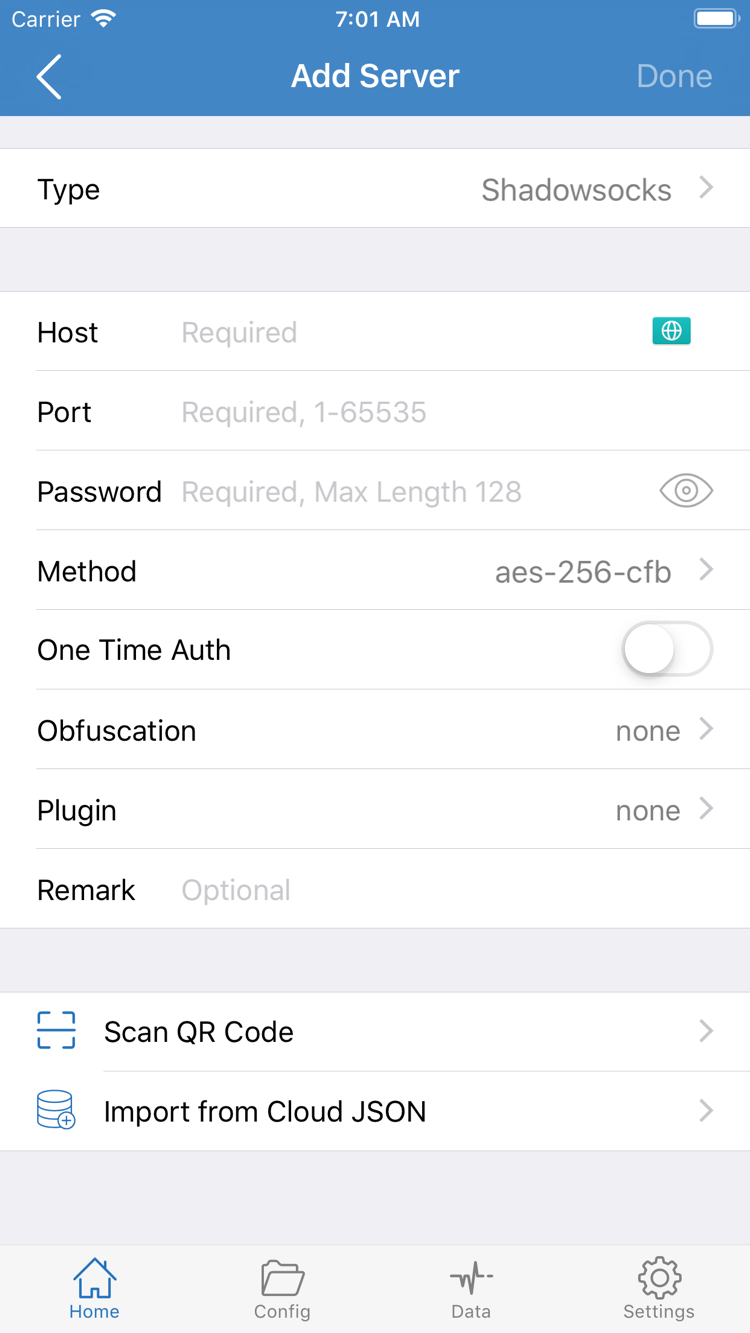
On Home, tap the add button in the upper-right corner or Add Server in the list to open the add screen. Tap Type first and select the protocol that matches your existing details, then fill in the remaining fields. The order matters: changing Type can change which fields are required. Don't fill in the screen based on a screenshot and then switch protocols at random.
Enter the server address in Host and the port provided by your service provider in Port. Check Password, Method, and any other authentication fields against your original details and the selected Type. The screenshot shows one example; fields vary by protocol. If your details include TLS, a transport method, or other options, check those too. Don't guess at missing values.
Before saving, check for spaces around the address, an incorrect port, and missing authentication details. After saving, return to Home and confirm the item appears in the SERVER list. A label helps you identify an entry, but does not determine how it connects. Entries with the same name may use different server details.
Import an Existing Subscription with Subscribe
If you have a subscription link, select Subscribe under Type on the Add Server screen. Enter the complete link in the URL field shown, then save. Get the link from your own service provider. Don't use the address of an information page or remove parameters at the end of the link. Return to Home, wait for the subscription request to finish, and check for the server list.
After importing, expand the relevant group and choose an entry you can identify before continuing. If you see a subscription name but no server entries, check the update result first instead of adding the same link repeatedly. Updating a subscription retrieves the list again; manually added servers must be maintained using their original details. Keep a copy of your original details before switching methods so you can restore them if needed.
Scan QR Code and Import from Cloud JSON at the bottom of the screen are other import options. Use them only if you already have details in the corresponding format; you don't need to try every option for your first connection. Subscription links and QR codes may contain authentication details, so don't share unredacted screenshots. See the glossary entry on subscriptions and configs for the difference between these terms.
Ready to continue: Home shows a server you can select. Next, choose how requests should be routed.
Global Routing: Choose How Requests Are Handled
This guide uses Config, Proxy, and Direct, matching the labels in the app.
Return to Home and tap Global Routing to check the current selection. It determines how requests are handled; adding a server is a separate step. If you don't check this after importing your details, the list may look right and the connection switch may be on, yet traffic may not take the route you expect.
| Mode | How It Works | Use During Initial Setup |
|---|---|---|
| Config | Processes requests according to the rules and related settings in the current config file. | Before using an existing ruleset, make sure the file you need is selected. |
| Proxy | Routes requests through a proxy. | Use temporarily to check whether the selected server can handle real-world access. |
| Direct | Connects directly, without a proxy. | Use to check whether the current network can reach the destination on its own. |
Using Config? Check the Selected File
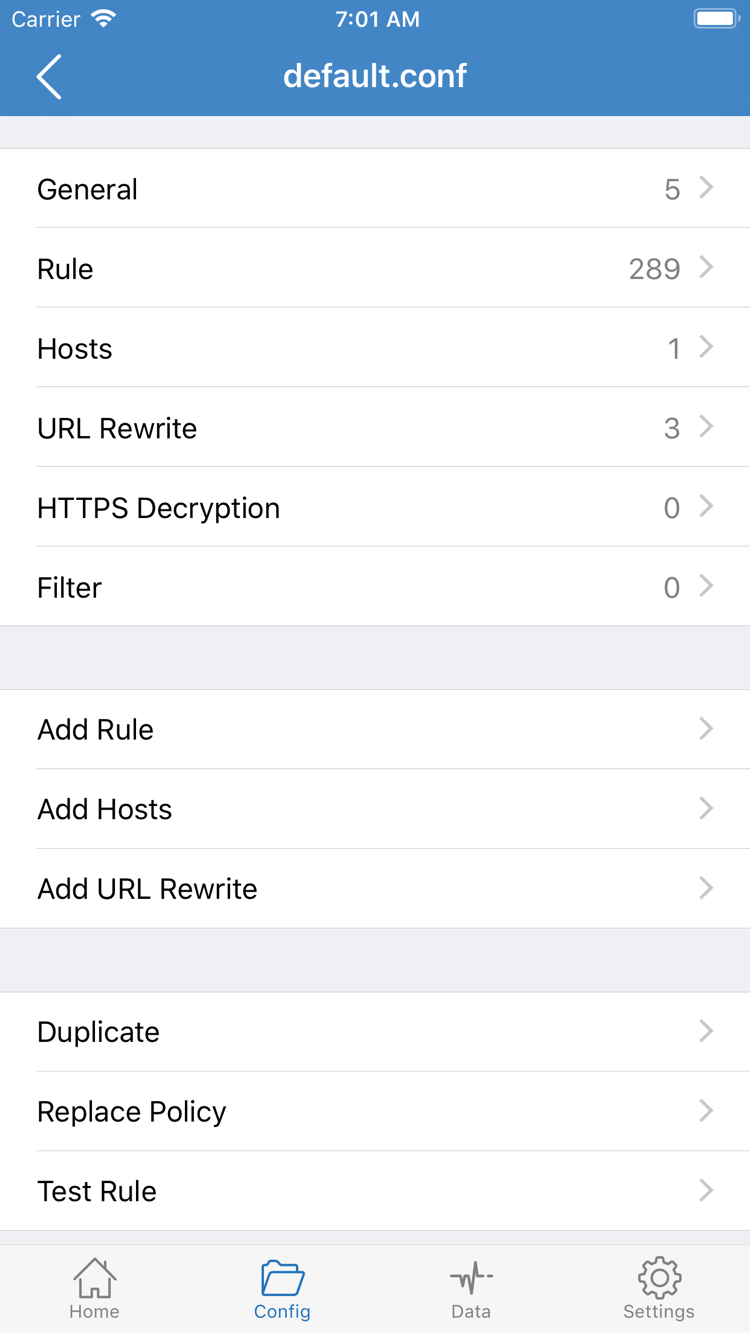
If you have a config file you want to use, open Config at the bottom of the screen. Check the file list and current selection, then open the file to review its contents. The config editor is organized into sections such as General, Rule, and Hosts; use Add Rule to add a rule. For your first setup, make sure the right file is selected. You don't need to edit every section just to connect.
A subscription and a Config file are not the same thing. A subscription usually provides a server list; a Config file controls rules and related request handling. Importing a subscription doesn't mean a particular config file is now selected. If your existing file refers to policies or groups, make sure those references match servers you can actually use. The key question is which file is currently in use—not whether a file was saved to the list at some point.
Config uses rules to decide how each request is handled. One request might use PROXY, while another uses DIRECT or REJECT. Rule order also affects the result, so the presence of a rule in the file doesn't prove it will be applied. For your first connection, leave your existing config as it is. See the rule keyword glossary for more on complex rules.
Use Proxy for a Controlled Comparison
If you don't have a ruleset in mind, or want to distinguish a server issue from a rules issue, note your current Global Routing selection and temporarily switch to Proxy. Continue with the connection test, then restore your usual mode. Don't mistake a temporary test selection for a permanent setting, or use successful access in Direct mode as proof that a proxy server works.
Ready to continue: You know whether Config, Proxy, or Direct is selected. If using Config, you can confirm which file is selected.
Home: Select a Server and Connect
Select a server, then turn on the switch at the top. The first connection also requires system authorization to add a VPN configuration.
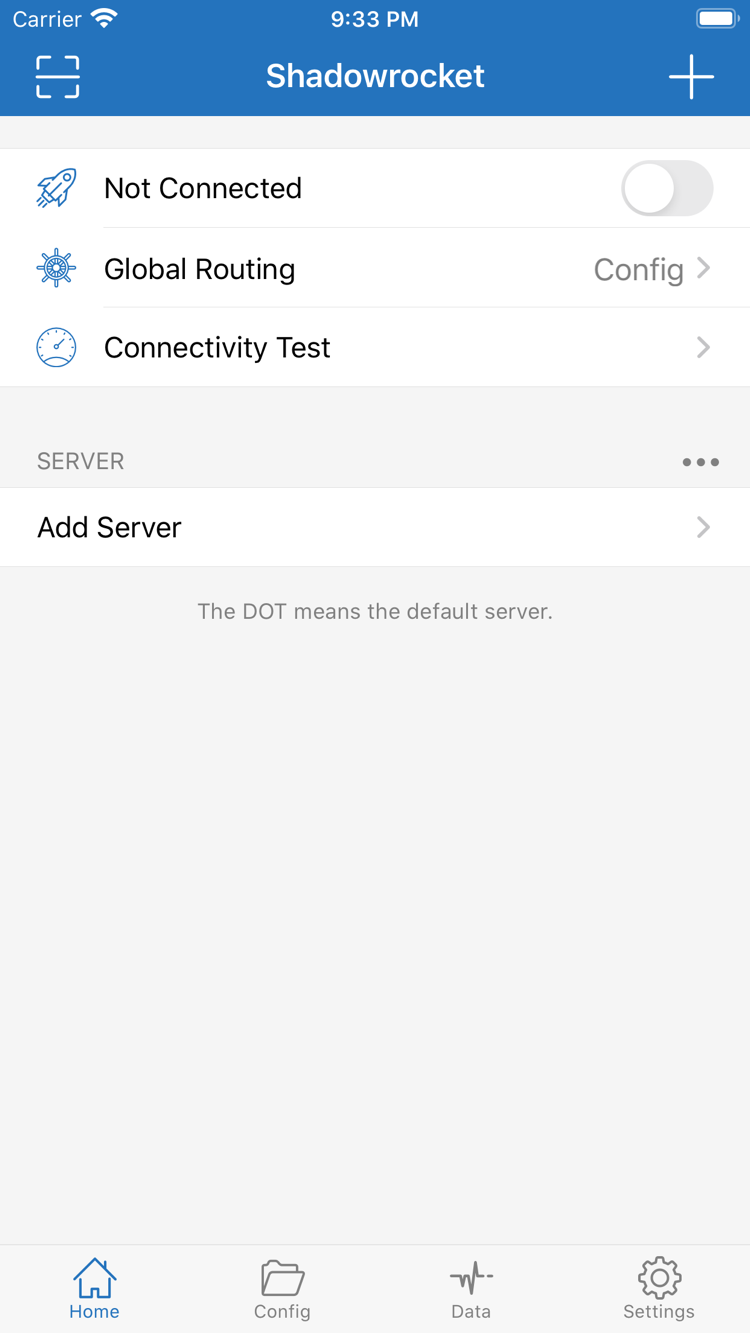
After choosing a routing mode, return to Home and select the server you want to use from the SERVER list. Check that it is marked as selected. Opening the edit screen isn't the same as selecting a server: the edit screen changes its details, while the list selection is what matters for this connection. If there are multiple groups, make sure the selected entry is in the intended group.
Next, turn on the connection switch at the top of Home. When disconnected, the app shows Not Connected. The first time you connect, the system may ask to add a VPN configuration. This permission lets the app create a system network tunnel; it isn't a purchase step and won't fill in missing server details. Confirm the request is from Shadowrocket, tap Allow as prompted, and complete any device verification required.
After completing the system prompts, return to Home and check whether the status at the top changes to connected. If you cancel authorization, try connecting again and review the prompt; don't delete your subscription right away. If your device is managed by an organization and the relevant settings are unavailable, check for device management restrictions. Repeatedly toggling the in-app switch can't replace system-level permission.
The checks are the same on iPhone and iPad: selected server, Global Routing, and connection status. The list may be arranged differently on a larger screen, but you don't need to enter a separate set of server details. Connection behavior may also change when you switch between Wi-Fi and cellular. For your first test, stay on the same network so a network change isn't mistaken for a settings change.
Once the connection status appears, avoid changing several settings at once. A VPN status from the system confirms that a tunnel was established; on its own, it doesn't prove the remote server authenticated successfully, every destination is reachable, or every rule is working as expected. Keep the current server and mode unchanged and move on to real-world testing. That gives you a clear baseline if something fails.
Ready to continue: System authorization is complete and Home shows connected. The selected server and Global Routing mode are confirmed.
Connectivity Test: Verify Real-World Results
Check these separately: the tunnel is established, the test passes, and real-world access works as expected. One result doesn't prove all three.
Leave the connection switch on. On Home, tap Connectivity Test and wait for the result. If the test fails, note the current network, server, Global Routing selection, and message before making changes. The server list test and Connectivity Test are diagnostic clues; they may use different targets and methods. Don't draw conclusions about every website from a single test result.
Test Real-World Access
Switch to the app or browser you need to use and try the content you want to verify. Check whether a new request completes. Don't rely only on an old page that's already open: cached content can appear to work even when no new connection was made. Reload the destination or perform an action that clearly requires a network connection, then confirm it finishes.
If Connectivity Test passes but the destination still fails, check Global Routing first. With Config, rules may send the destination through DIRECT, PROXY, or REJECT. A comparison using Proxy can help determine whether the issue is related to rules. Note the original setting before switching, change only this one option, and retest the same destination. Restore your preferred mode when done. A single destination may also fail because of the destination service itself; that doesn't mean the entire connection is unavailable.
Keep a Repeatable Test Sequence
After your first successful connection, remember the sequence: select a server → check the mode → connect → run Connectivity Test → try real-world access. Follow the same steps after updating a subscription or switching networks. This makes issues easier to pinpoint than changing the protocol, DNS, and rules all at once. If you need to record your setup, note only the selections and results you need; don't put a full subscription link or password in public notes.
To understand the difference between PROXY and DIRECT, see the glossary. To investigate a specific rule, DNS issue, or app problem, continue to Troubleshooting and follow the steps for your symptoms. This guide's verification is complete when the access you need works as expected—not when every test shows the same result.
Settings: Troubleshoot by Stage
Check your details and network first, then the connection and rules. Change one thing at a time and retest the same destination.
Subscription Imported, but No Server List Appears
Return to the subscription entry and check that the URL is complete, isn't a webpage address, and is still valid. The subscription needs to retrieve its contents over the current network; if the list is empty, there are no servers to use in the next step. Review the update message, then ask your own service provider to confirm the link status and content format. Creating the same subscription again won't fix the issue. A successful update means the list was retrieved; it doesn't mean every server in it has been tested.
The Switch Turns Off or the Connection Won't Start
First check that system authorization is complete and a server is selected on Home. Make sure Type, Host, Port, and authentication fields match your original details. If the server requires extra transport or TLS parameters, check those too. Keep a record of the original values and correct one field at a time. If another VPN connection is active, disconnect it before testing Shadowrocket again to rule out interference with the system connection state.
Test Times Out or Results Vary
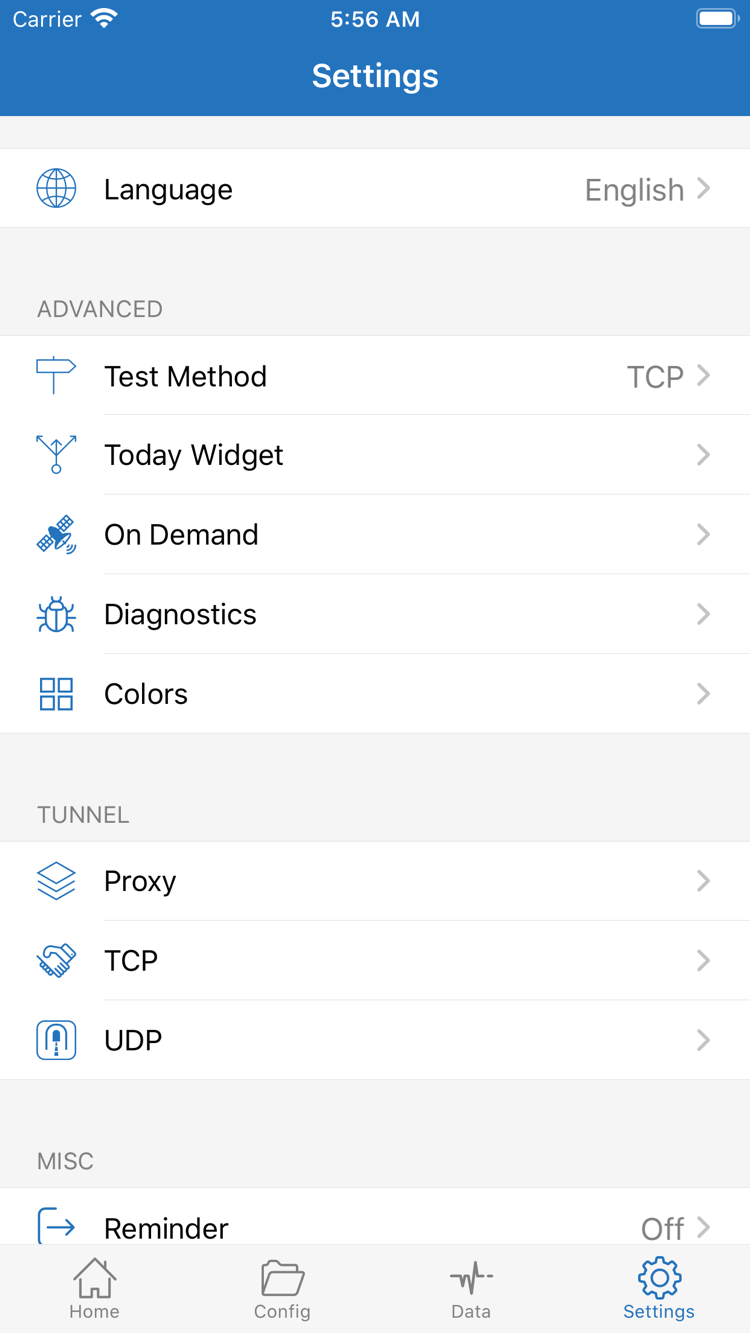
Open Settings and check Test Method. Different methods may check different stages. Consider timeouts alongside real-world access instead of deleting the server right away. You can also test the same server on another available network, but check the connection status again after switching. If it keeps failing on the same network, note the error message, then check the server details and service status.
Some Content Fails After Connecting
Briefly switch Global Routing to Proxy for comparison. If Proxy works but Config doesn't, check the selected config file, rule order, and policy references first. If both modes fail, go back to the server and network steps instead of making major rule changes. DNS issues need to be assessed based on the specific error. For the full workflow, see Troubleshooting by Symptom.
It Reconnects After You Turn It Off, or Settings Behave Unexpectedly
In Settings, check whether On Demand is enabled and whether its conditions match the current network. On-demand connections can make it harder to observe what happens after you turn the connection off manually. For initial troubleshooting, note the original settings, temporarily disable the relevant conditions, then restore them after comparing results. Don't change every option under Proxy, TCP, and UDP just to keep the connection active; adjust these settings only for a specific issue.
Use Diagnostics to find additional clues. When contacting your own service provider, say whether the failure occurs during a subscription update, connection, or real-world access, and share the comparisons you've already made. Before sharing any logs, remove server authentication details, the full subscription link, and other personal information. This keeps the information useful for troubleshooting without exposing your access details in a screenshot.
You're done when: Your existing details work, and the connection and real-world access behave as expected. Choose a mode for everyday use as needed; leave deeper settings alone until you have a specific issue to address.