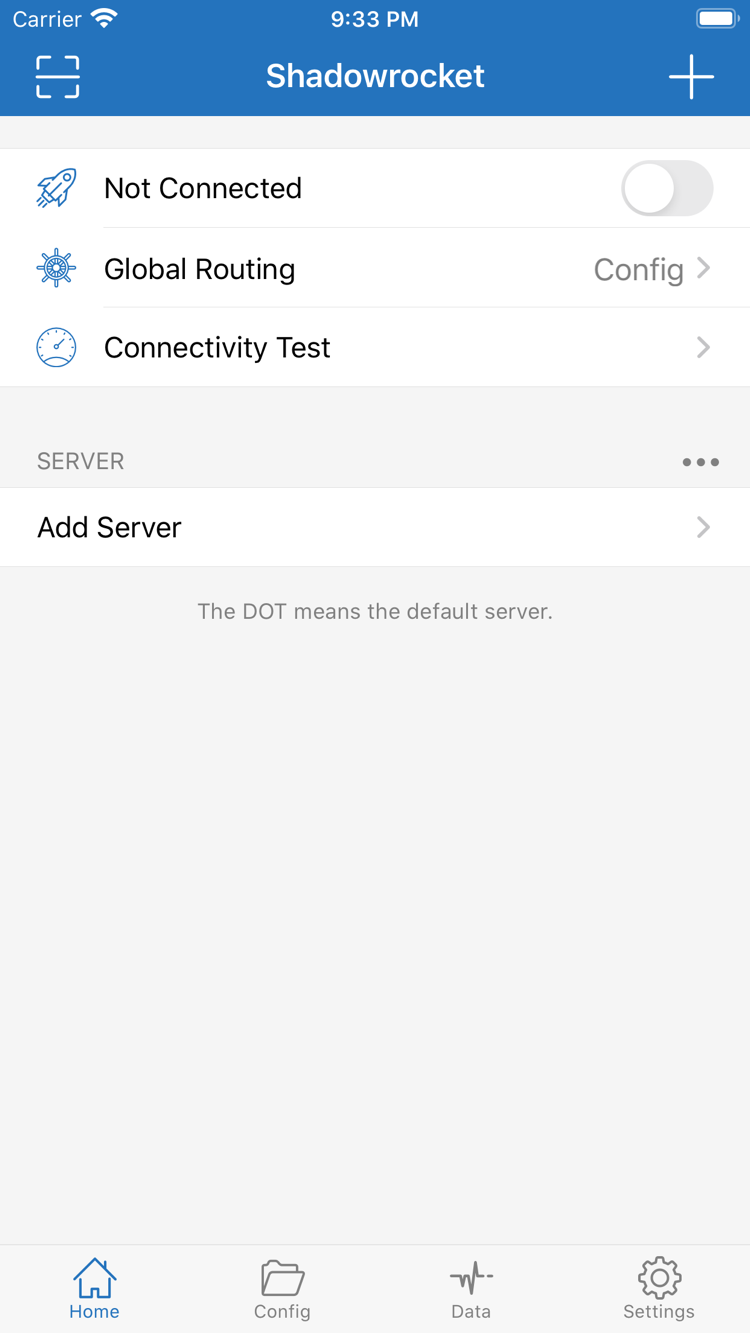
The official guide for iOS / iPadOS: first verify the genuine App Store listing and one-time purchase, then add your existing server details, set up rule-based routing, and test the connection.
Check the App Store listing for system requirements and device compatibility.
Official App Store screenshot · Home For interface reference; servers are not included.
App Store exclusive · One-time purchaseiPhone / iPadMac / Apple TV: see the App Store listingShadowsocks / VMess / VLESS / Trojan / Hysteria2
[Rule]
Rule-based routing and configuration
First, distinguish server details, routing mode, and configuration files. Server details determine the connection endpoint; Global Routing sets how traffic is handled overall; rules in Config determine how specific requests are routed. Follow the setup steps below in order, and remember that a successful import does not confirm a successful connection.
Check Global Routing before reviewing rule order
In Global Routing, Config applies the configuration, Proxy routes traffic through a proxy, and Direct connects directly. To use rule-based routing, select Config first, then check which configuration file is active. Rules are evaluated in order, so specific domain rules generally belong before broader ones. FINAL handles requests that do not match earlier rules. After making changes, test the same destination again and verify both the matching rule and the connection result; the toggle state alone does not confirm that routing is working correctly.
DOMAIN-SUFFIXPROXYFINAL
Set up On Demand after a successful manual connection
On Demand starts a connection when specified conditions are met. First, establish and test a manual connection from Home. Then open Settings, review On Demand, and check that its conditions fit your network. If the connection state changes after you disconnect manually, check those conditions and the system VPN status before removing servers. To disable On Demand temporarily, confirm the setting both in the app and in the system. On Demand cannot fix incorrect server details or replace checks for subscription validity and network access.
SettingsOn DemandHome
Fill in Add Server for the actual server type
Shadowrocket supports protocols including Shadowsocks, VMess, VLESS, Trojan, and Hysteria2. In Add Server, select the Type that matches your existing server details, then fill in the corresponding fields. Authentication, TLS, and transport settings vary by type, so changing only Host and Port is not enough. When importing a subscription, check the type and required fields as well. A protocol name alone does not indicate connection performance. Troubleshoot using the original details provided by your service provider; don't guess based on the protocol name or switch types at random.
Add ServerTypeHost / Port
Import your Subscribe link, then check Home
Get an existing subscription link from your service provider. In Add Server, select Subscribe, enter the link, and save it. Once the subscription has been fetched, return to Home and check the server list. A subscription updates server details in bulk; it is not a Config rules file. If an update fails, first check that the link is complete, your current network can reach it, and your provider still serves valid content. Subscription URLs may contain account information, so hide them in screenshots or before asking for help. Before deleting a subscription, check which records you need to keep to avoid confusion from importing them again.
SubscribeAdd ServerHome
Confirm the active Config and keep a recoverable copy
Config files contain rules and related settings. Before editing, confirm which file is in use and save a copy, then make changes one at a time. Saving a file does not switch Global Routing to Config. PROXY, DIRECT, and REJECT in rules specify different handling actions; interpret them in the context of rule order. When moving to a new device, plan backups using the app's iCloud sync settings and Config export, then check your servers and rules one by one on the new device. Restoring an App Store purchase does not restore all configuration data.
ConfigGlobal RoutingConfig
Use Connectivity Test to narrow down the issue
After selecting a server in Home, run Connectivity Test to check the connection, then try the destination you actually need. A successful test does not guarantee access to every destination, and a failed test does not necessarily mean the app is at fault. Use Diagnostics and Data traffic statistics in Settings to distinguish server connectivity, DNS resolution, rule matching, and destination-specific issues. Note your network, selected server, and Global Routing mode, and change one thing at a time. Remove subscription URLs, passwords, and other sensitive information before sharing diagnostic details.
Shadowrocket is available only on Apple platforms, exclusively through the App Store. These steps focus on iPhone and iPad. Before installing, check the App Store product page, then follow the prompts on your device.
iPhone
Open the product page in the App Store and confirm the icon, developer, and app ID before purchasing and installing. When you first open the app, add your own server details. If a system prompt to add a VPN configuration appears when you connect for the first time, check the app name and follow the authorization prompts.
Installing the app does not mean you have a working connection. Return to Home to check the selected server, Global Routing, and connection switch, then test access to a real destination. See the App Store listing for system requirements.
Use the Apple ID used for the purchase to check your purchase history and the product page before installing. Purchase entitlements, whether iPhone and iPad share a purchase, and system requirements are as listed on the App Store.
On iPad, follow the same Home, Add Server, and Config setup steps. The layout may vary by device and display mode; use the interface labels to find each setting. Installing the app and transferring server details are separate steps.
Shadowrocket is also available from the same App Store on Mac and Apple TV. Check the listing for compatibility, system requirements, and purchase terms.
Before you begin, have your existing subscription or server details ready. Start with a basic connection you can test again, then adjust rules, On Demand, and sync settings. Changing several settings at once makes it harder to identify the cause of a failure.
Add Server / Subscribe
Add a server or an existing subscription
From Home, open Add Server. For a single server, choose the Type that matches your details and fill in the fields. For a subscription, select Subscribe and paste the full link from your service provider. Save, return to Home, confirm the expected entry appears in the list, and select the server you want to use.
After importing, first check the type, address, and required authentication fields. If the list is empty, troubleshoot the subscription fetch first. If the entry is present but the connection fails, check the server details. Reimporting is not a general fix, and don't show a complete subscription URL in public screenshots.
Global Routing / Config
Choose a routing mode for your needs
Open Global Routing and distinguish Config, Proxy, and Direct. To route traffic by rules, select Config and check which file is active in Config. To troubleshoot whether a request is affected by rules, you can change the mode once you understand the purpose; restore the original setting when testing is done.
The selected server, routing mode, and configuration file are three separate checks. Changing rules while still in Proxy or Direct cannot tell you whether those rules work. For the first setup, keep a copy of the existing configuration. Once basic access works, add specific domain or address rules.
Home / Connectivity Test
Turn on the connection and test real access
Return to Home, turn on the connection, and follow the system prompts to authorize the VPN configuration. Check the connection status in both the app and the system, then run Connectivity Test and try the destination you actually need. An enabled switch is only one part of connection status; it does not mean every rule is working correctly.
If the test fails, note your network, selected server, and routing mode first. Then check whether the server details are valid, the subscription needs updating, and the correct configuration is selected. If only certain destinations fail, focus on DNS and rule order. If all destinations fail, start with the basic network and server connection.
This is the official Shadowrocket site and guide. Verify the app using details visible on its App Store product page: the official icon, developer name, and app ID must all match. Don't rely on search result rankings or a similar name.
App ID 932747118
Developer Shadow Launch Technology Limited
Closed-source commercial app
Check three details on the product page
Open the product page in the App Store and first check the name Shadowrocket and the official icon. The icon should match the one in this site's header. Then confirm the developer is Shadow Launch Technology Limited, and check that the product page URL contains id932747118. A similar name alone does not confirm the app's identity.
Verify the specific product page, not just a thumbnail in search results. Shadowrocket is a closed-source commercial app; purchase, installation, and app updates are handled through the App Store. This site provides instructions and does not replace the App Store product page with other files or sources.
Whether the product page is available for purchase, which currency it shows, and which devices are compatible depend on the storefront used by your current Apple ID. If you can't find it in search or the page is temporarily unavailable for purchase, check the signed-in account and storefront status first. Don't assume a similarly named product in search results is the same app.
This guide does not specify system version requirements or infer whether a device can install the app. Check your device and system in the App Store compatibility section. For Mac and Apple TV, system requirements, availability, and whether purchases are shared are also as listed on the product page.
Shadowrocket is a one-time purchase. The US reference price is $2.99; the actual price and local currency are as shown on the App Store. Check iPhone and iPad purchase entitlements under the same purchasing account. Compatibility and whether purchases are shared across other devices are also as listed on the App Store.
When changing devices or reinstalling, use the Apple ID used for the purchase to check your App Store purchase history, then confirm whether you can download the app again. If the page still shows a price, first check the account and original purchase record. Check app restoration, server details, and Config restoration separately; a purchase record is not a configuration backup.
Buying the app ≠ buying a service plan. Purchasing Shadowrocket gives you the right to use the client; it does not include servers or subscriptions. Before using the app, prepare your own valid connection details and obtain the required fields or subscription link from your service provider. This site does not provide, sell, or recommend servers or subscriptions.
Subscription validity, server connectivity, and the App Store purchase record are separate matters. App updates are delivered through the App Store; maintain server details using the information from your existing service provider. Before updating, save important configuration. After updating, check the Home selection and Config file before testing the connection.
Connection, subscriptions and purchase restoration guides
Choose what to read next: for your first connection, complete server selection and authorization; with multiple subscriptions, clarify groups and update behavior; when changing devices, restore the purchased app first, then check that your existing details are complete. Here are the three latest articles.
Start by selecting a default server from the Home list, then check system VPN authorization, the connection switch, and Connectivity Test. Learn how test results differ from real-world access, and what to check first if the test fails: server details, network status, and routing mode.
If you have multiple subscriptions, first identify their sources and associated entries, then plan how to group, sort, and update each one. Before removing duplicate entries in Home, confirm which subscription they belong to. Deleting an individual server is not the same as deleting an entire subscription.
Use the Apple ID used for the purchase to find the App Store purchase record, and distinguish redownloading the app from restoring configuration. If the page still shows a price, check the signed-in account, purchase record, and storefront status before restoring server details and rules on the device.